How to Download a Transaction Statement from your API Dashboard
Last updated: October 9, 2026
This guide explains how to download your Transaction Statement from your API Dashboard.
When downloading your statement, you can filter transactions to retrieve specific records, including payments or collections, within a selected date range.
Follow the steps below to access your transaction history:
Log in to your API Dashboard and click on Transactions.
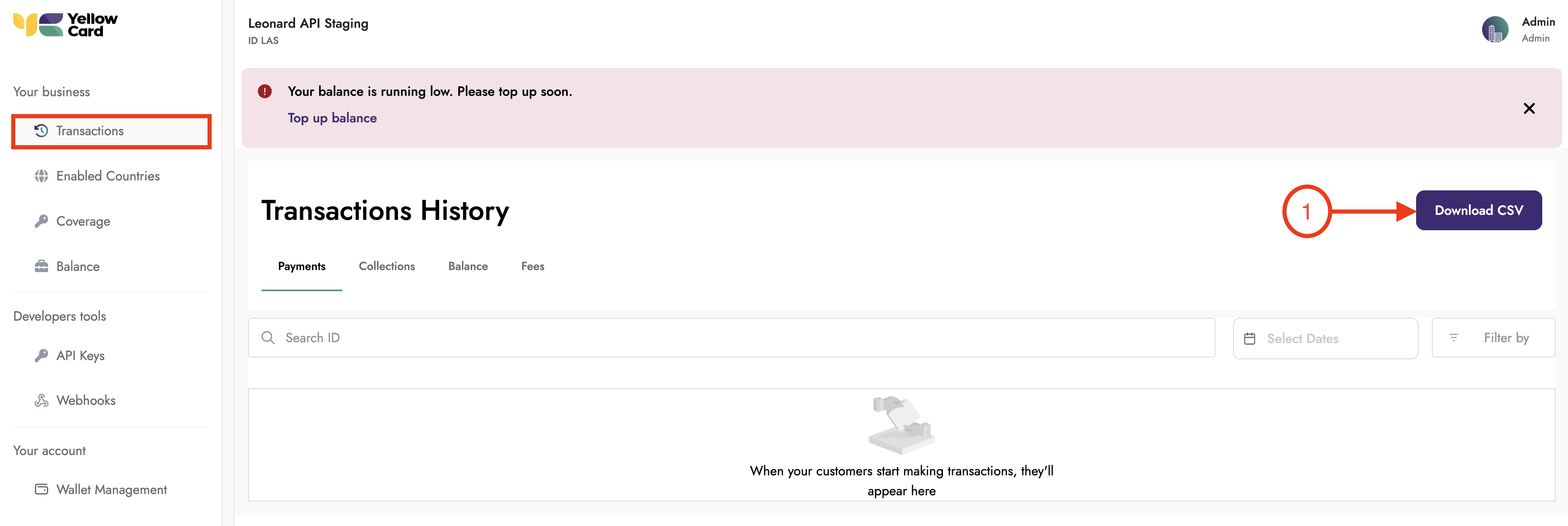
Select the type of transaction you want to view: Collections, Payments, Balance, or Fees.
If known, enter the transaction date.
You may also use Advanced Filters to refine your search further.
Once the relevant transactions are identified, click Download CSV.
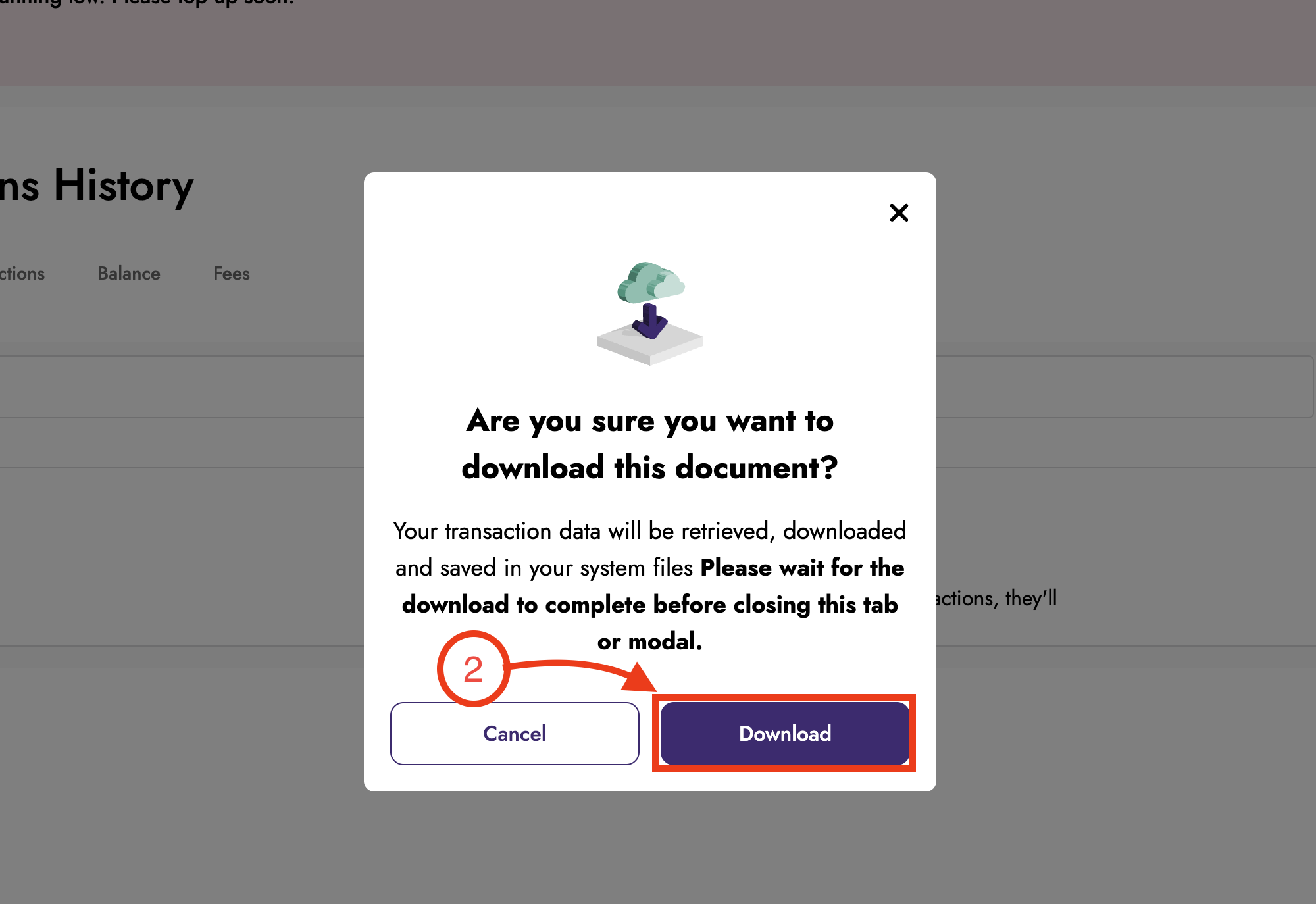
The system will generate the transaction statement and download it to your computer.