How to Delete an API Key
Last updated: October 6, 2026
This guide explains how to permanently delete an API key from your Yellow Card API Dashboard.
Before you begin, make sure you have the following:
Access to your Yellow Card dashboard with permission to manage API keys.
Confirm that no application, integration, or script is still using the key, since deleting it revokes access immediately.
Follow the steps below to delete your API key:
Open the API Keys page
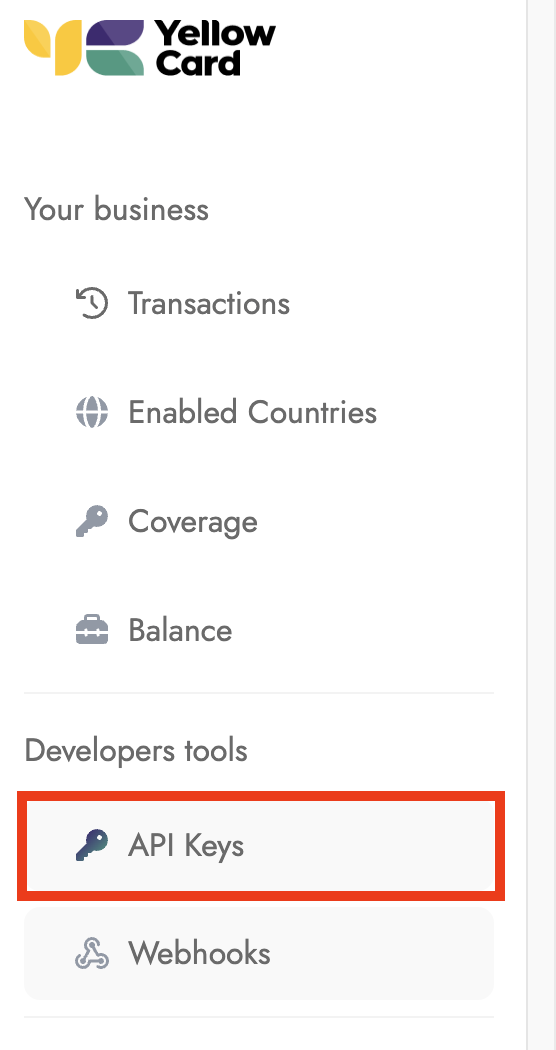
Log in to your Yellow Card dashboard. In the left-hand menu, under Developer tools, select API keys. The page lists every key on your account with its Name, Date created, Public key, Secret key, and Status.
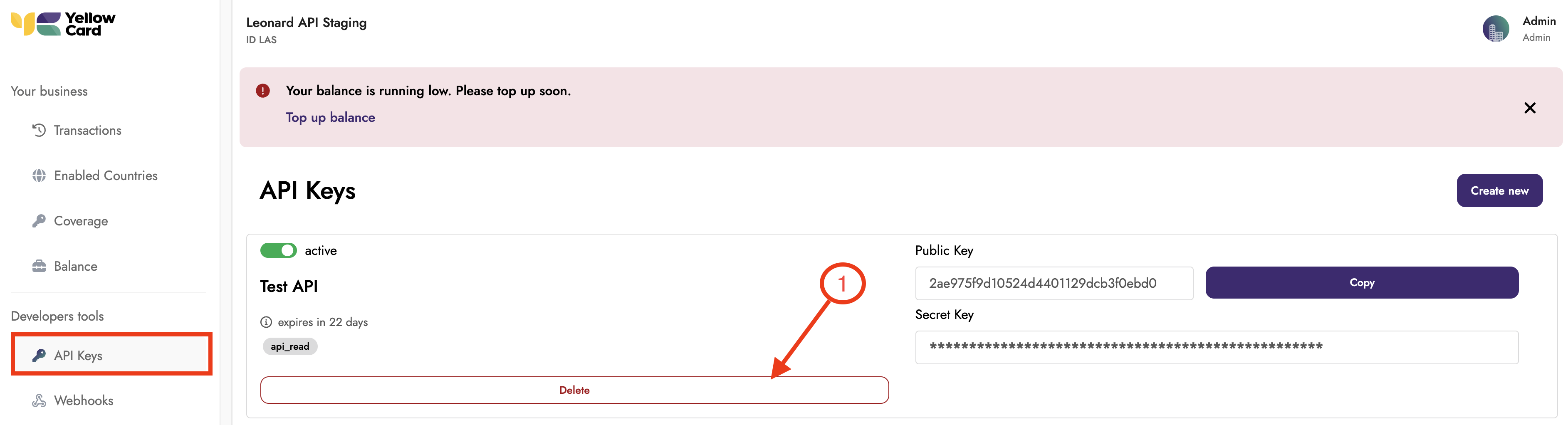
Find the key you want to remove in the table, then select Delete.
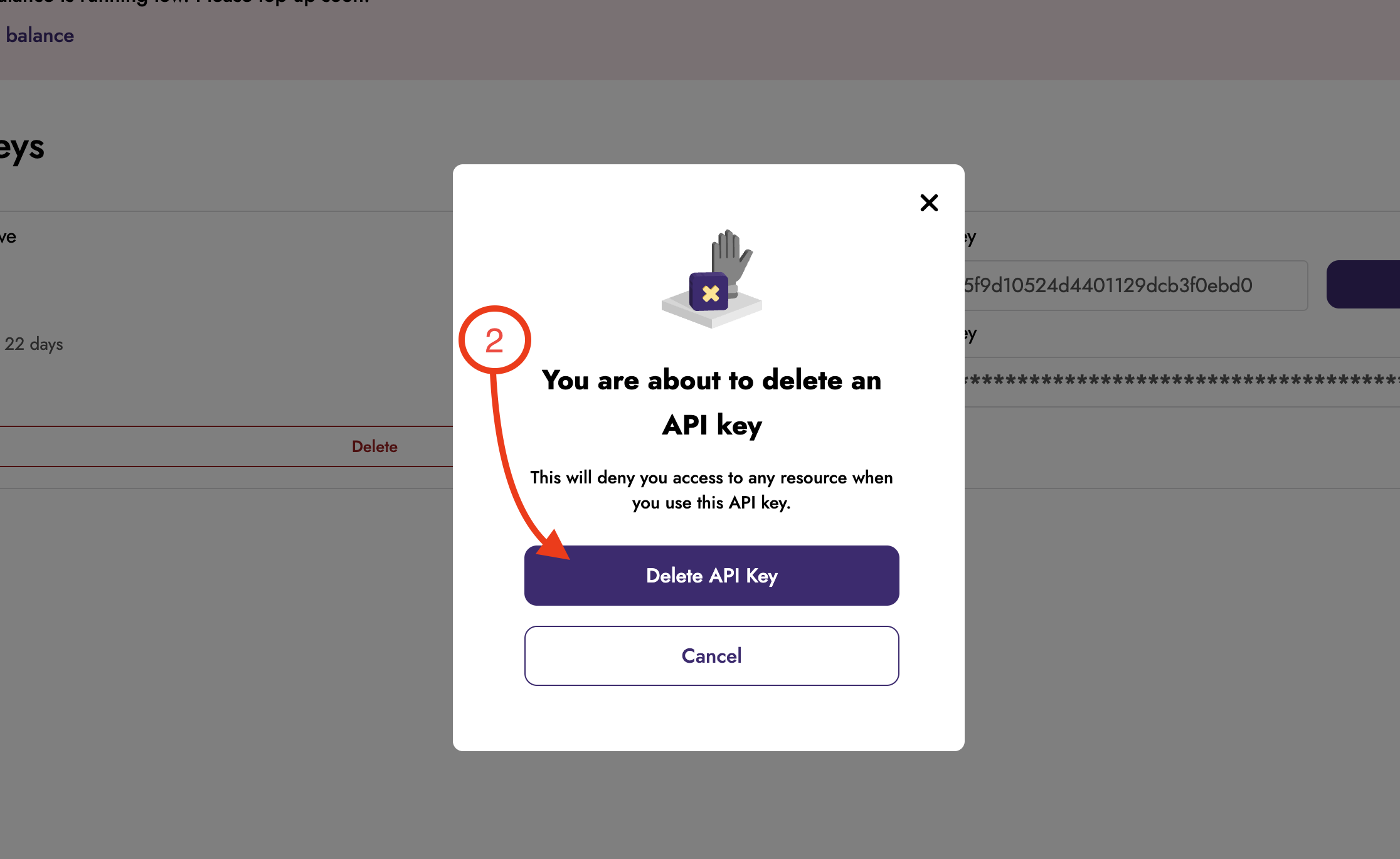
A confirmation window appears with the message "You are about to delete an API key," along with a reminder that any application or integration using the key will immediately lose access, and that the action cannot be undone.
Select Delete API key to remove the key permanently.
Select Cancel, or close the window with the X, if you no longer want to delete it.
Check the confirmation message
Once the key is removed, an "API key deleted" notification appears at the top of the page. Click Okay to dismiss it. The API Keys page refreshes, and the deleted key no longer appears in the table.
You have successfully deleted the API Key.