How to Manage Your Webhook
Last updated: September 28, 2026
This guide explains how to edit and delete a webhook after you have created it.
Before you begin: log in to your Yellow Card API dashboard with a role that allows you to manage developer settings, such as Administrator. Deleting a webhook stops all event notifications to that endpoint, so confirm the URL is no longer in use before you remove it.
How to edit a webhook
Follow the steps below to edit your webhook:
Log in to your API dashboard. In the left-hand menu, under Developer tools, select Webhooks and click on the webhook you want to edit.
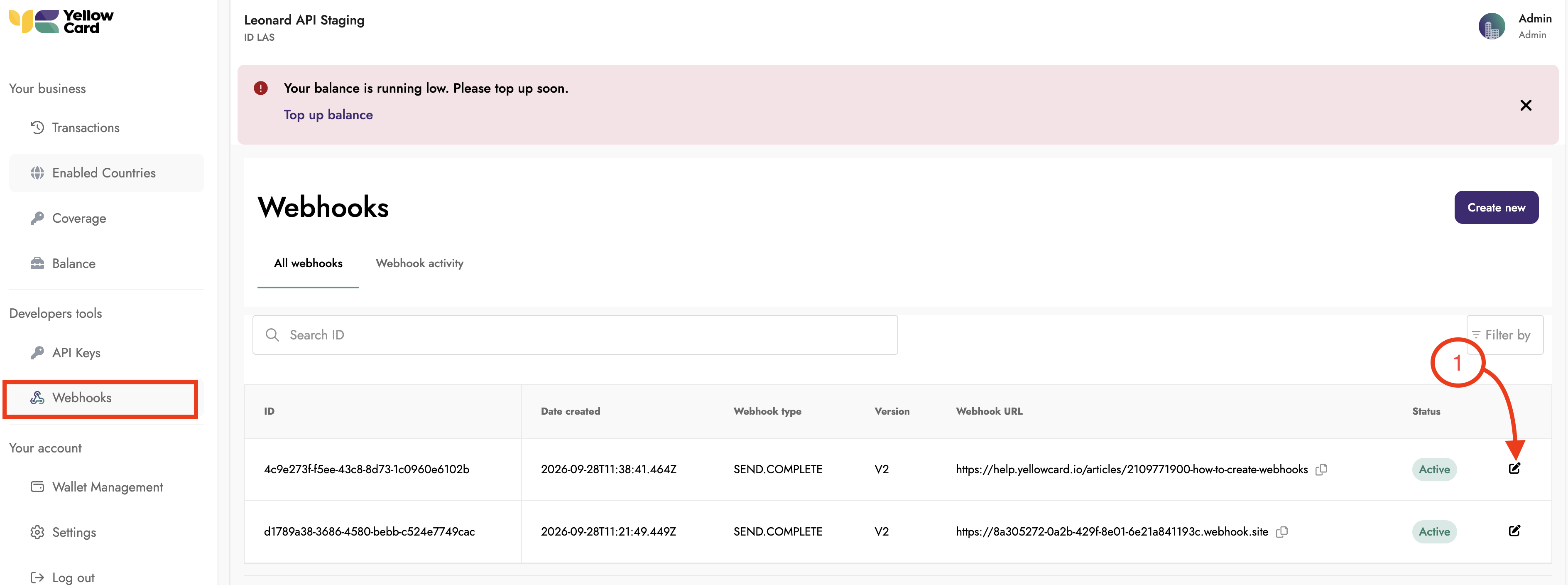
Make your changes, then click Save.
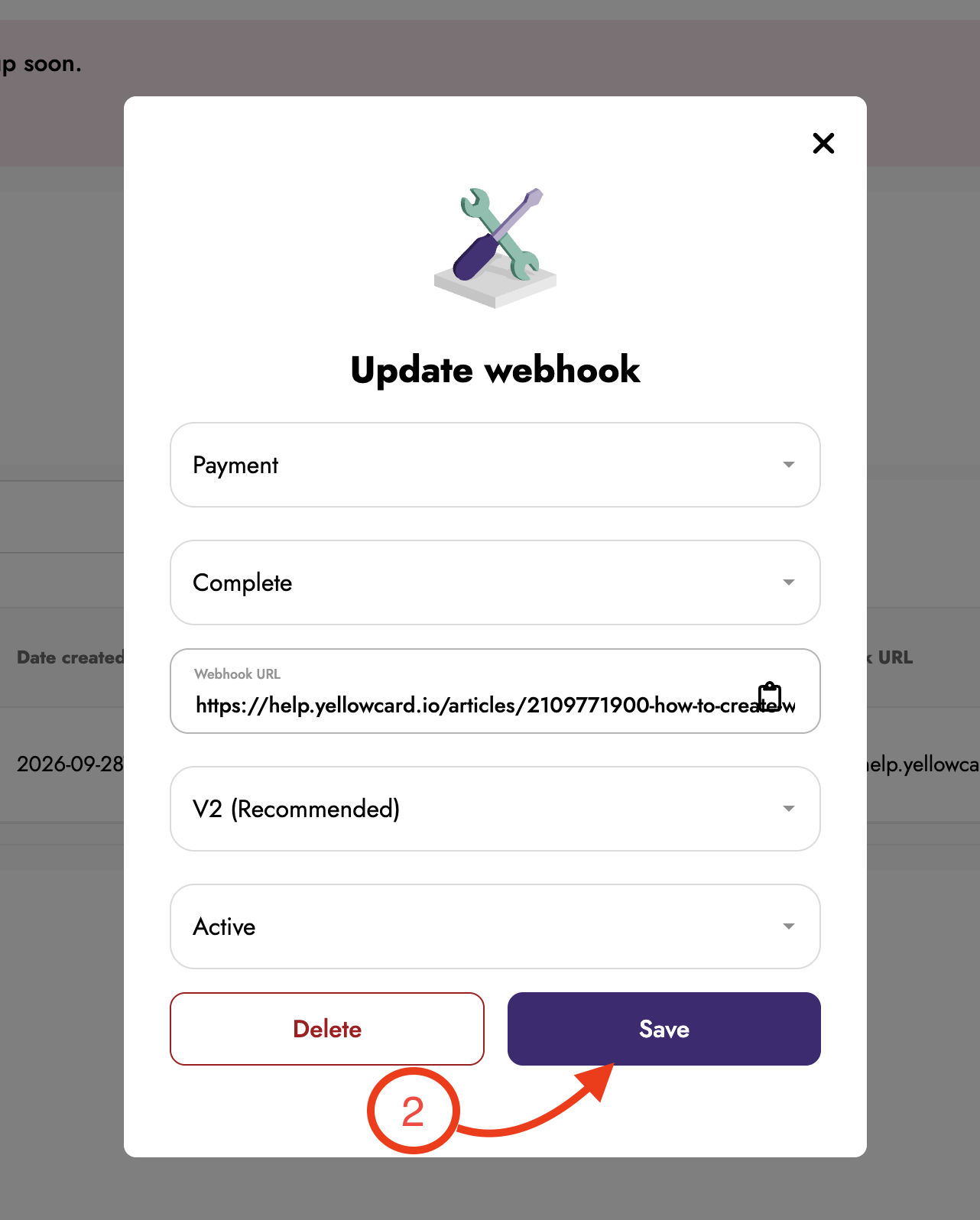
You have successfully edited your webhook.
How to delete a webhook
Deleting a webhook is permanent, and the endpoint will stop receiving events immediately. To remove a webhook, follow the steps below.
Follow the steps below to delete your webhook:
Log in to your API dashboard, then in the left-hand menu under Developer tools, select Webhooks and find the webhook you want to remove in the table.
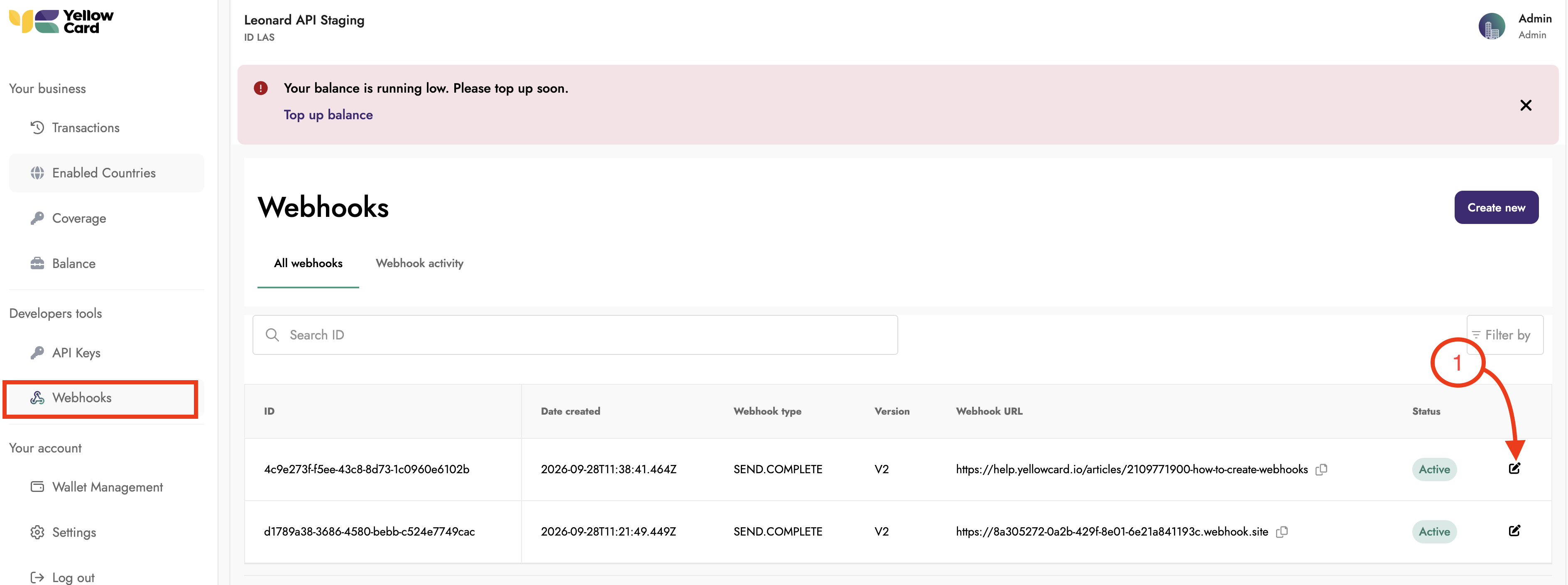
In the Action column at the far right of that row, click the Edit icon, select the delete option.
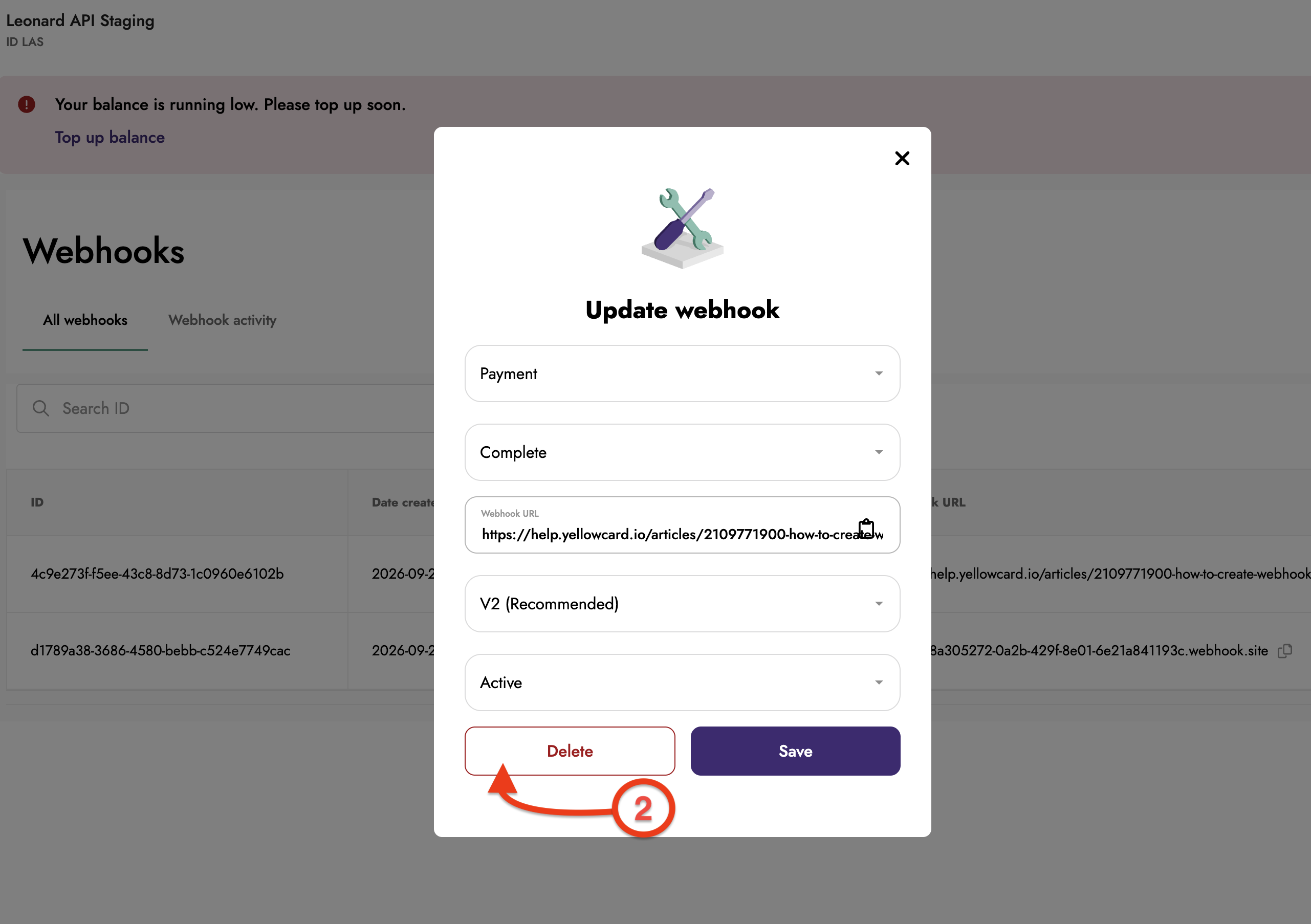
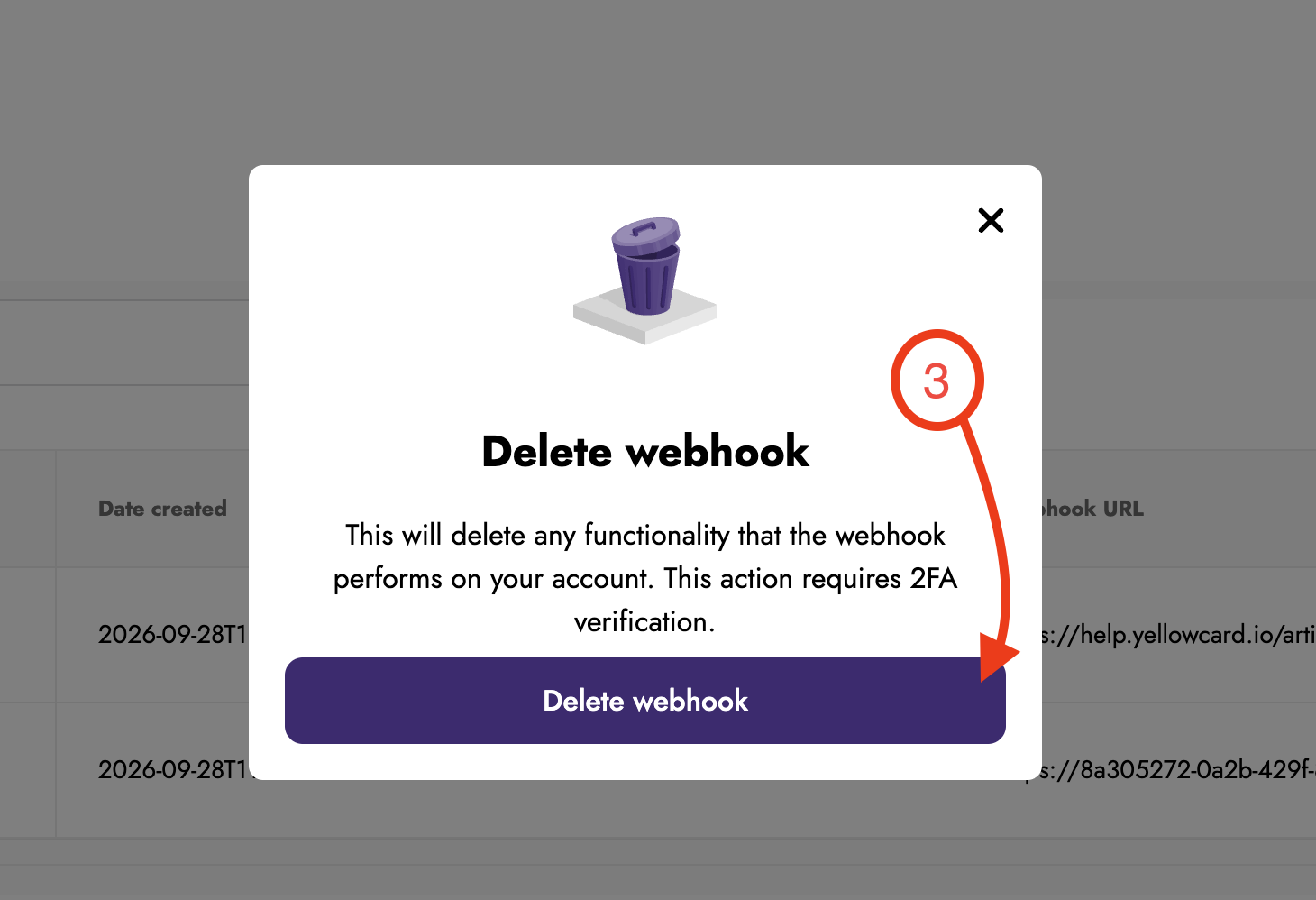
Click Delete Webhook in the pop-up that appears to confirm the deletion.
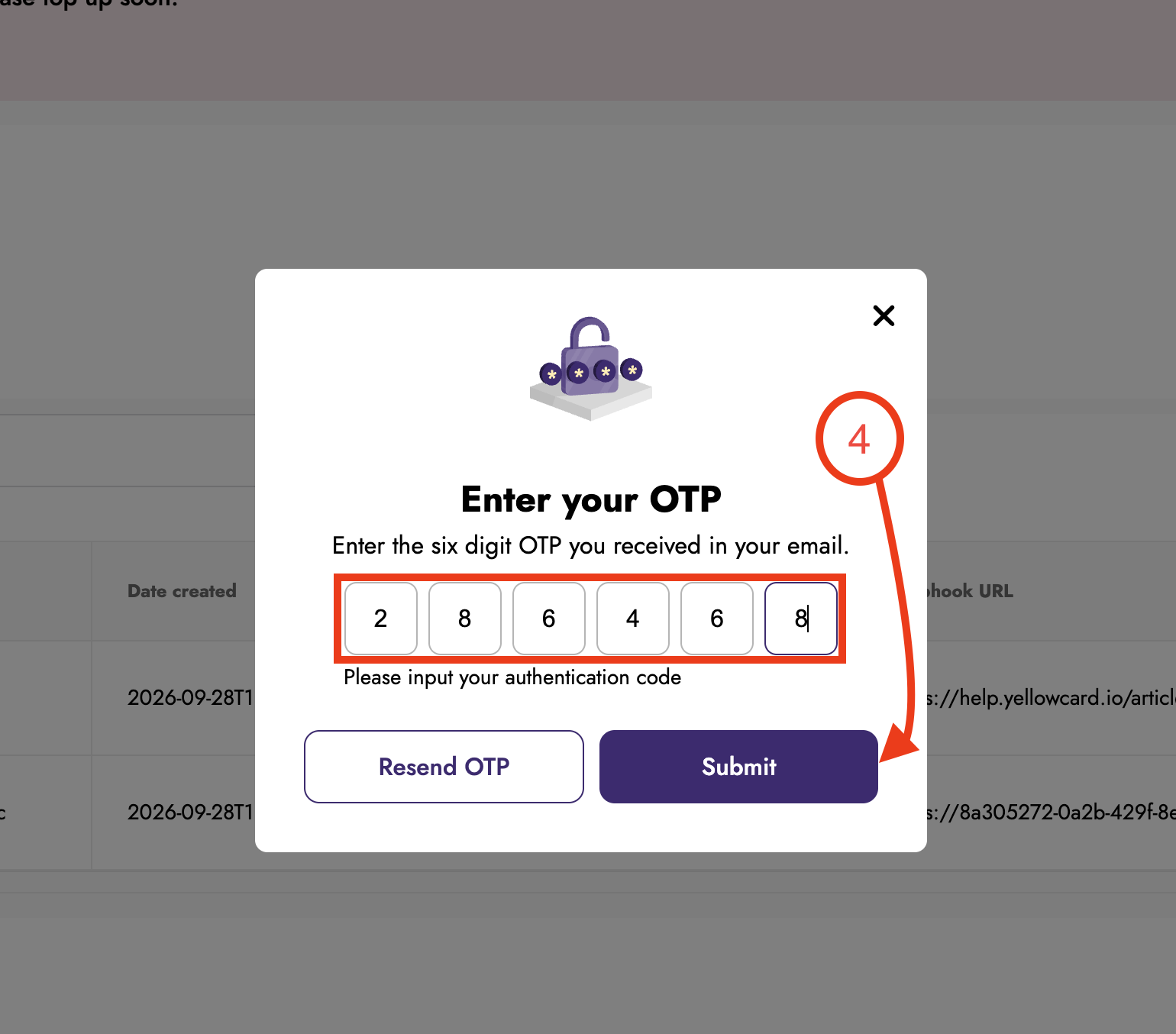
An OTP code will be sent to your registered email address, so enter it in the OTP pop-up and click Submit.
You have successfully deleted your webhook.