How to Add a Bank account on the Treasury Portal
Last updated: September 23, 2026
This guide explains how to add Bank details to your Treasury Portal.
Follow the steps below to add a bank account to your Treasury Portal:
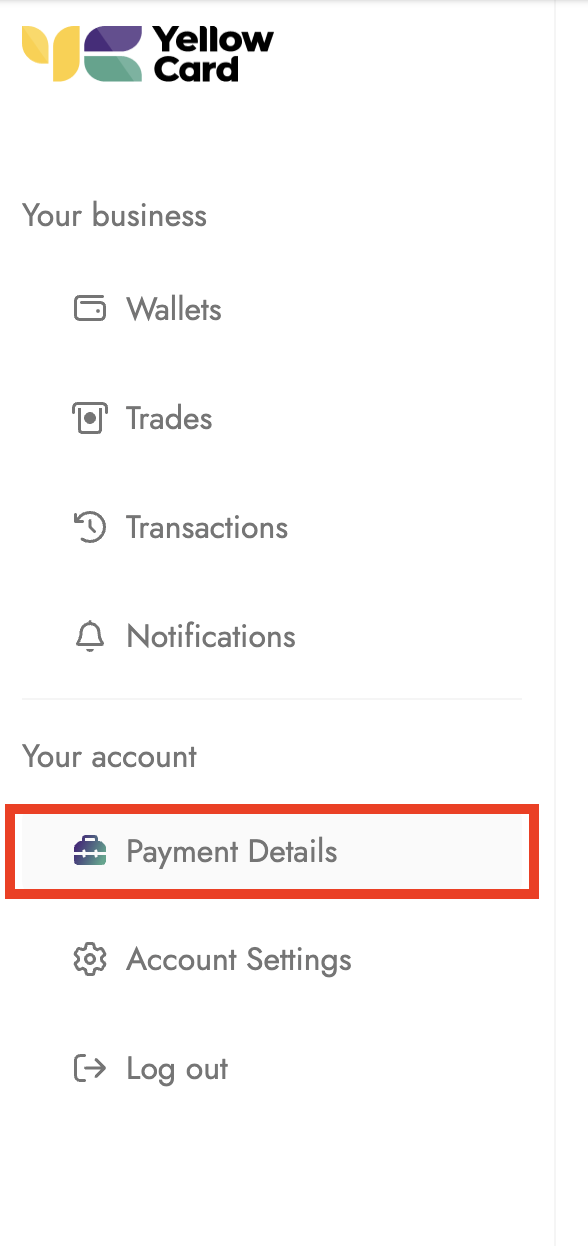
Log in to your Treasury Portal and click on Payment details.
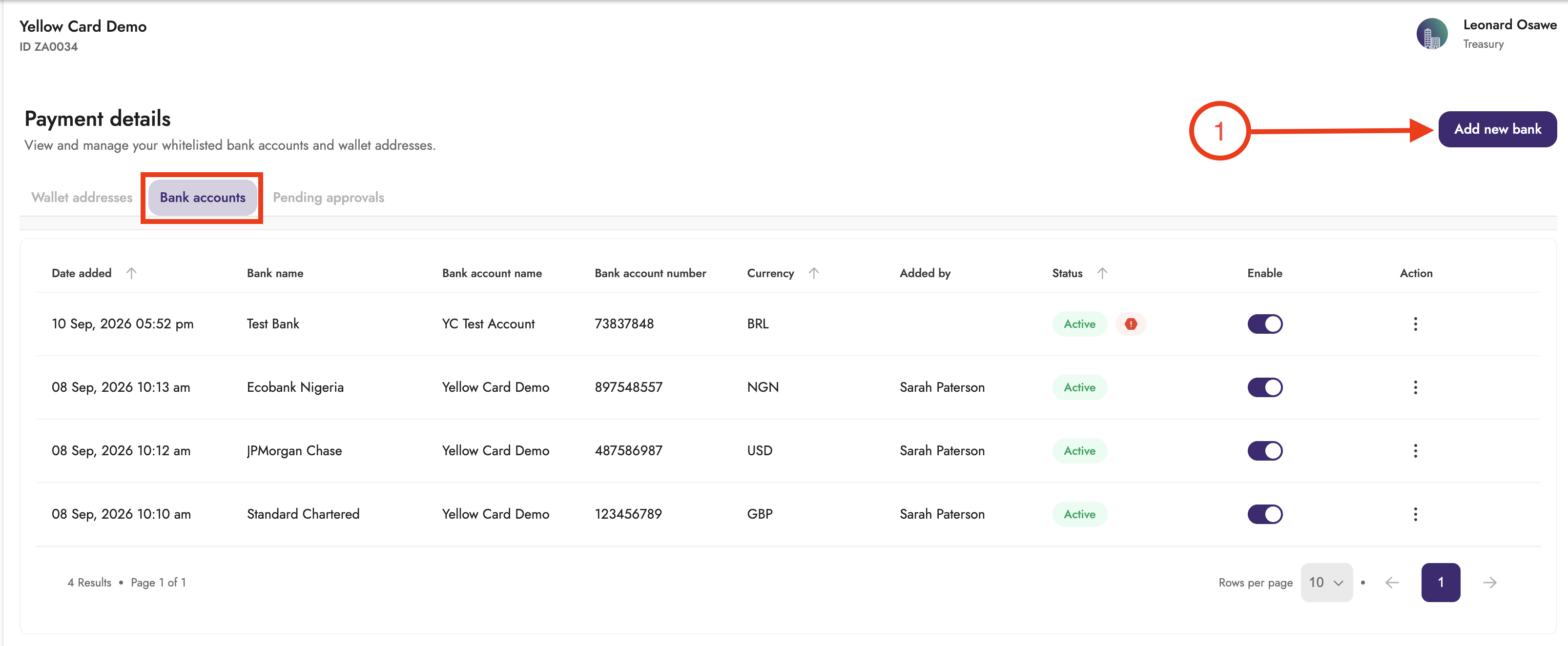
Select the Bank Account tab and click on Add new.
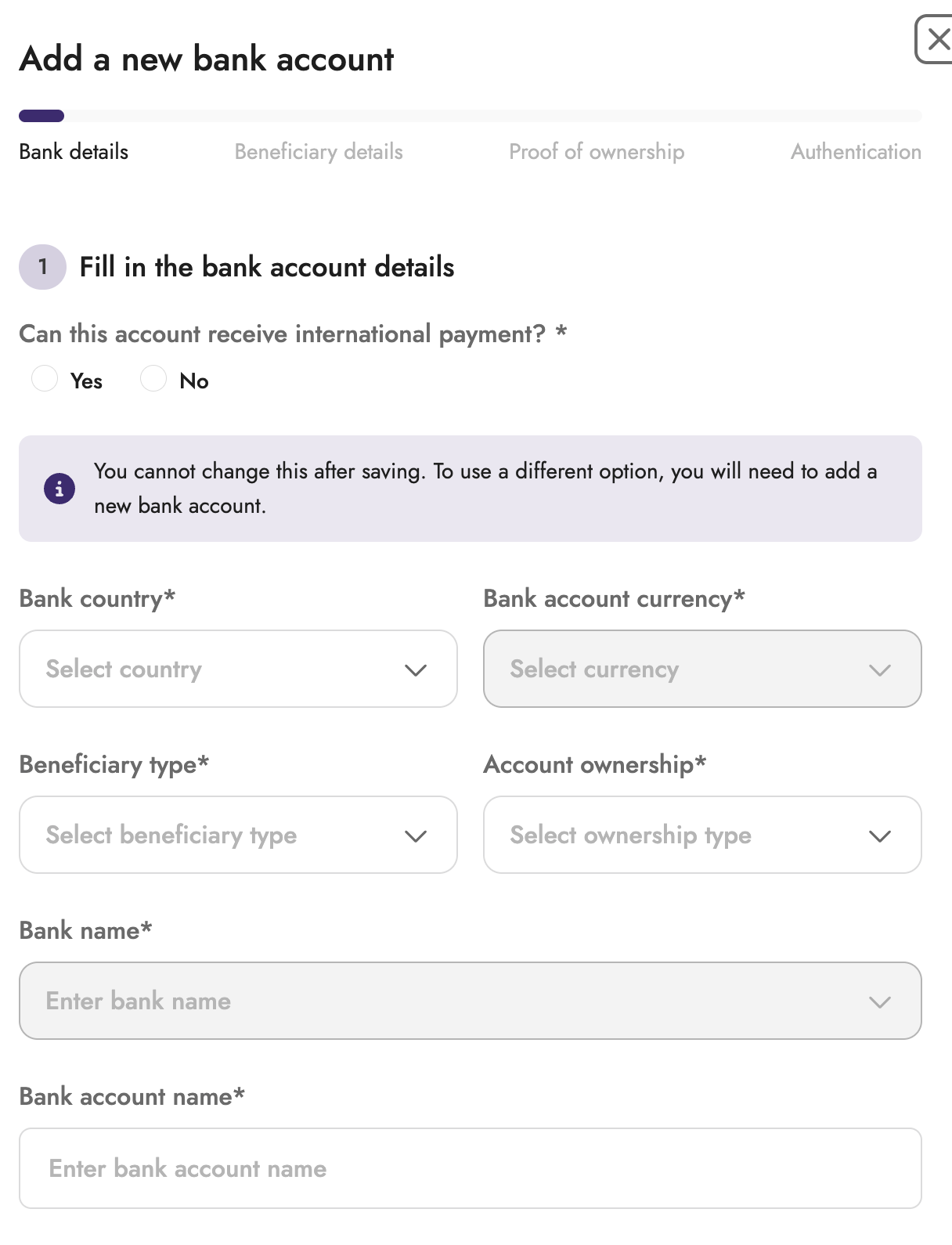
In the pop-up window, fill in the Bank account details and click Next.
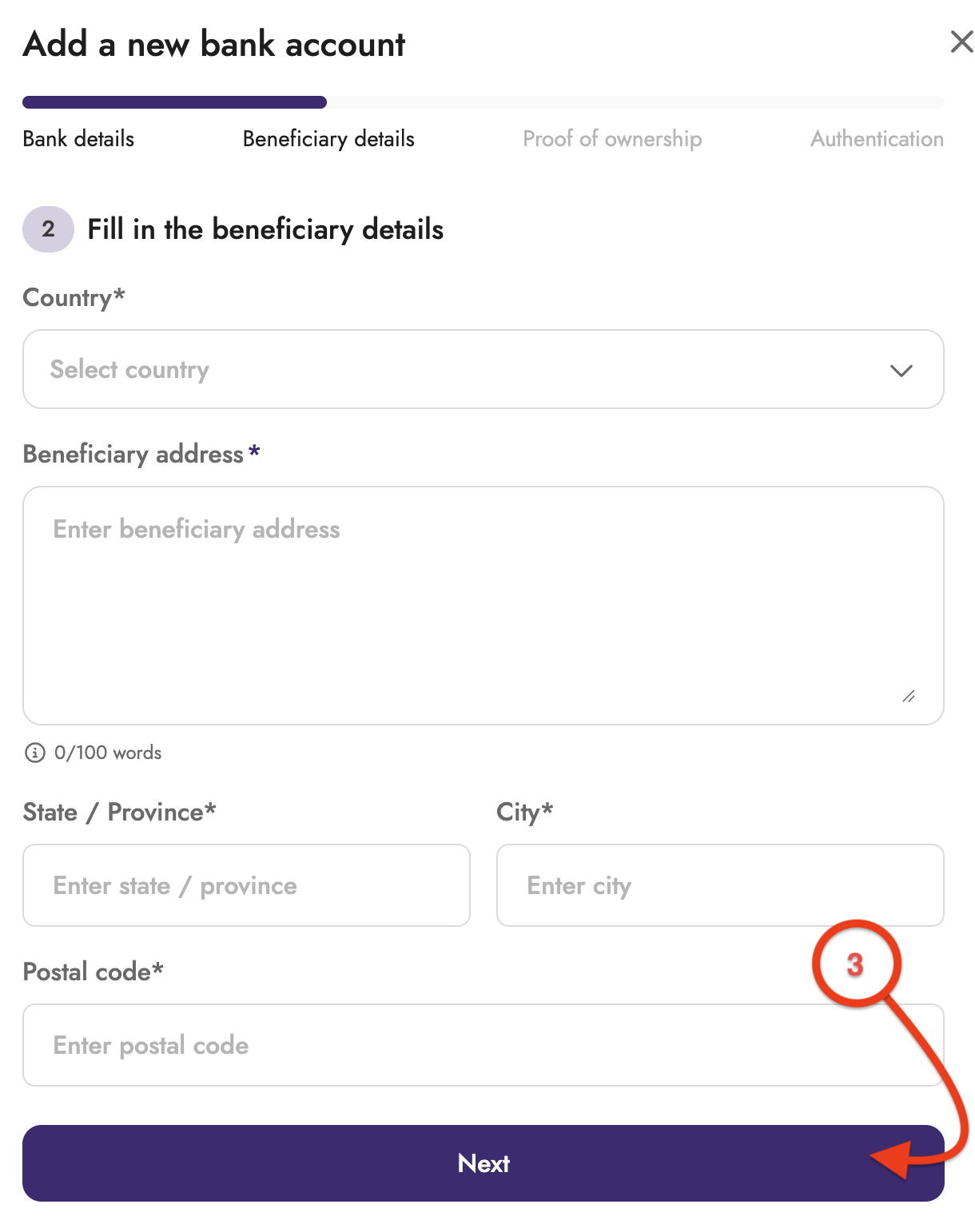
Fill in the Beneficiary Details and click Next.
You will be asked to attach proof of Ownership
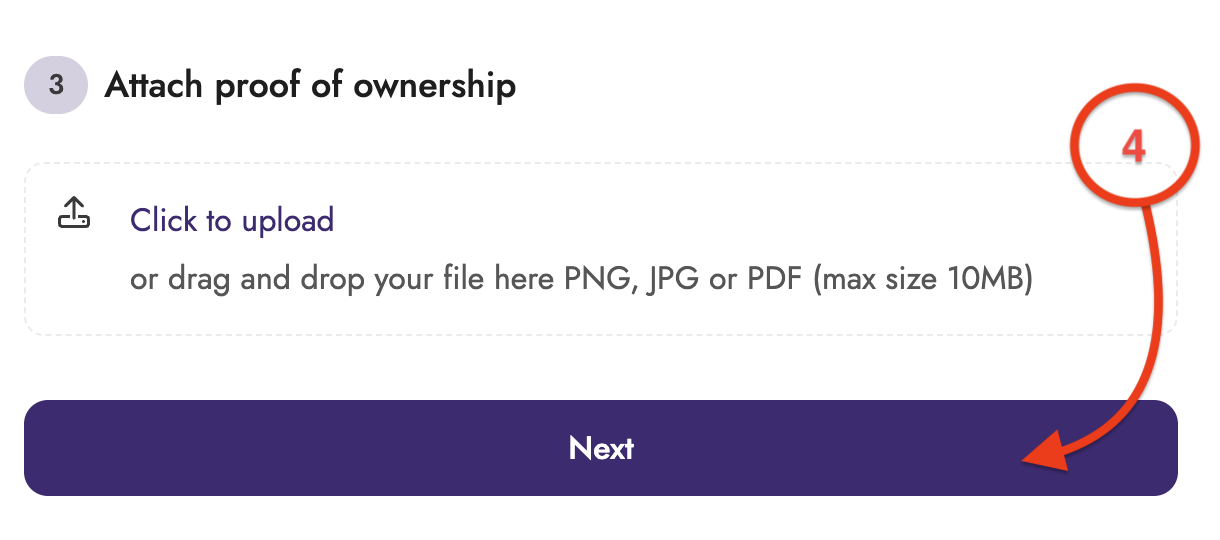
An OTP code will be sent to your registered email address, and you should enter the OTP code and click Submit to confirm your request.
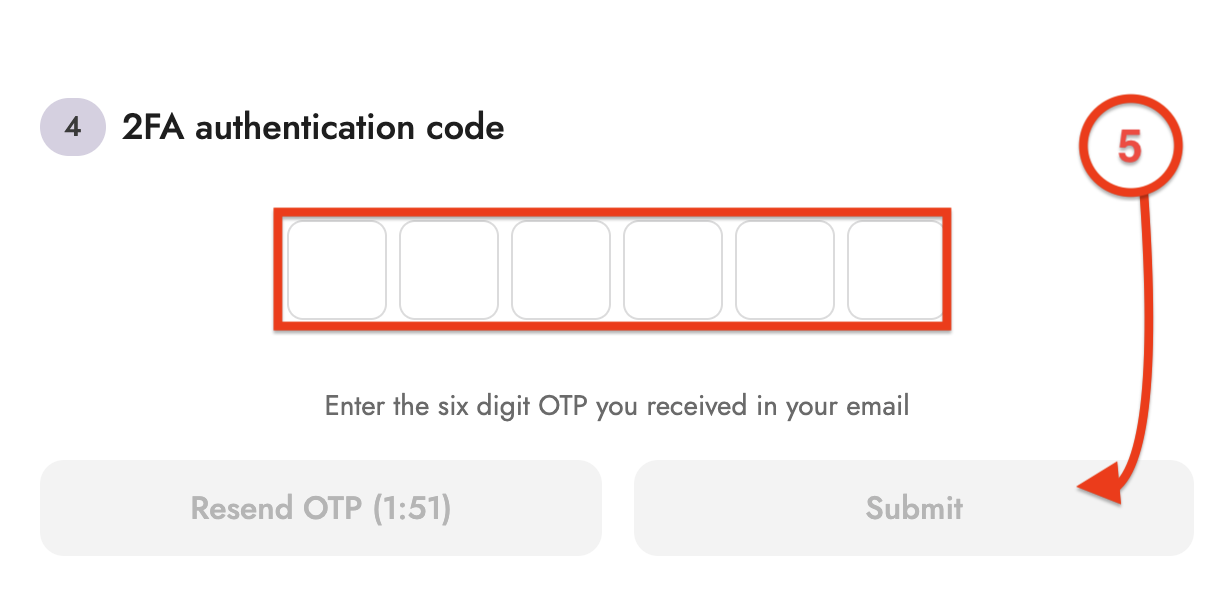
Your bank account information will be sent for approval; once approved, the bank account will be added.